

Design Online
Getting your custom apparel order started has never been easier. With Artik's online design tool, you can create, preview, and save your artwork from any device, no design experience needed.
From custom printed t-shirts to branded hoodies and sports jerseys, the design online tool puts creative control in your hands before you spend a single dollar.
How to Design Online With Artik
The process follows a simple flow that takes you from blank canvas to finished order in just a few steps.
-
Select a Product
-
Start Designing
-
Save Design
-
Continue
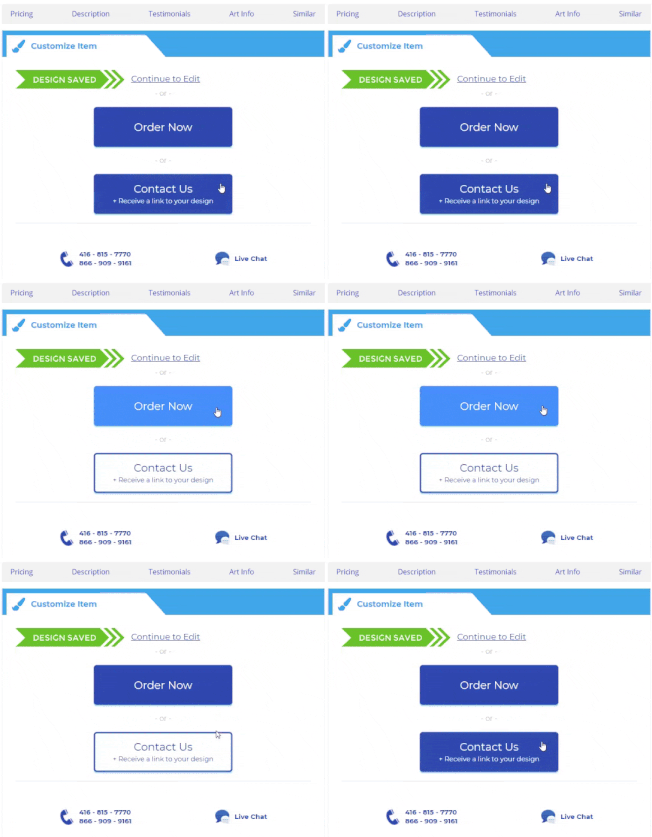
Once your design is saved, two paths are available:
Option A: Order Now
Review pricing, add to cart, and check out directly. This is the fastest route for clients who know exactly what they want and are ready to go.
Option B: Contact Us
Prefer to speak with someone first? Submit your design alongside your questions. One of our customer service representatives will respond with a direct link to your saved design. It's a great option for bulk orders or anything that needs a personal touch before committing.
Download our step-by-step PDF guide for a detailed walkthrough of the tool.
Step by Step Guide [View/Download the PDF]
Frequently Asked Questions About the Online Design Tool
Can I get a link to my saved artwork?
Yes. After saving your design, you'll see two options on screen: Order Now or Contact Us. Click Contact Us, enter your email address, and include any questions you have. An automatic response will be sent to your inbox containing a shareable link to your design. From there, you can share it with a teammate, colleague, or client, and return to edit it at any time.
If you included additional questions in your message, a customer service rep will follow up within the same business day or the next.
This workflow pairs perfectly with our screen printing service, where getting artwork finalized before production is an important part of the process.
What if I can't find my saved design?
If you saved your design but didn't proceed to the next step, don't worry. Reach out to us directly at [email protected] and include the name you saved the design under and the approximate date it was created. Our team can retrieve it from the database and get you back on track.
How do I add names or numbers to sports jerseys?
The online design studio includes a preview feature for names and numbers. To add them, look for the Collegiate Category within the font options and select Artik Stock Font to generate a sample preview of how your jersey will look.
![[Image Guide]](https://www.artik.com/pub/media/wysiwyg/pages/Design-Online/ARTIK-STOCK-FONT_GUIDE.jpg)
Send the full list of names, numbers, and jersey sizes directly to our customer service team for the actual personalization. Alternatively, you can send the details to [email protected] using the Excel template available for download on this page.
Excel Template:
Pricing for personalization is as follows:
-
Stock numbers: $5 per jersey
-
Custom names: $10 per jersey [more info]
For full details on jersey personalization options, visit our dedicated embroidery and names/numbers pages.
Design Online, Then Leave the Rest to Us
The online design tool is just the starting point. Once your artwork is saved and approved, Artik's production team in Toronto takes over, handling everything from file preparation to printing, packing, and shipping across Canada.
With over 35 years of experience producing custom apparel and promotional products, Artik has the process down to a science. Fast turnaround, competitive pricing, and a satisfaction guarantee mean your order will arrive looking exactly as you designed it.
Jump into the design tool, create something you love, and let us handle the production. Contact us to start your custom order today.
Quick Guideline: Select a Product > Start Designing > Save Design > Continue:
Option A) Order Now > Review Pricing > Add to Cart > Checkout
Option B) Contact Us > Receive a link to your design, and a customer service rep will reply to your questions.
Step by Step Guide [View/Download the PDF]
FAQ
 Can I get a link to my saved artwork?
Yes, after saving your design, you will see some options to continue: Order Now or Contact Us. (Refer to page 8 of PDF)
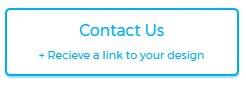
Click on Contact Us and enter your email along with your questions. The button looks like this:
Then you will receive an auto email response containing a link to your design. You can share or continue to edit from the link.
If you have included other questions to the message, our customer service reps will response within the same or next business day.
I cannot find my saved artwork. How do I proceed?
If you have saved your design, but did not continue to the next steps, you may contact us at [email protected]
Kindly let us know the design name you have saved, as well as the date. Our team will be able to retrieve it from database.
Where can I add names or numbers for my sport jerseys?
You can generate a sample preview with our stock font in the online design studio. The font can be found under Collegiate Category: Artik Stock Font. [Image Guide]
Then we recommend emailing the full list (Name/Number/Jersey Size) in excel format directly to our customer service reps or [email protected]
Excel Template: Names/Numbers Form [Download],Numbers Form [Downlaod]
Please note that adding stock numbers are $5 per jersey, and custom names are $10 per jersey. [more info]
If you have any further questions, please feel free to contact us.