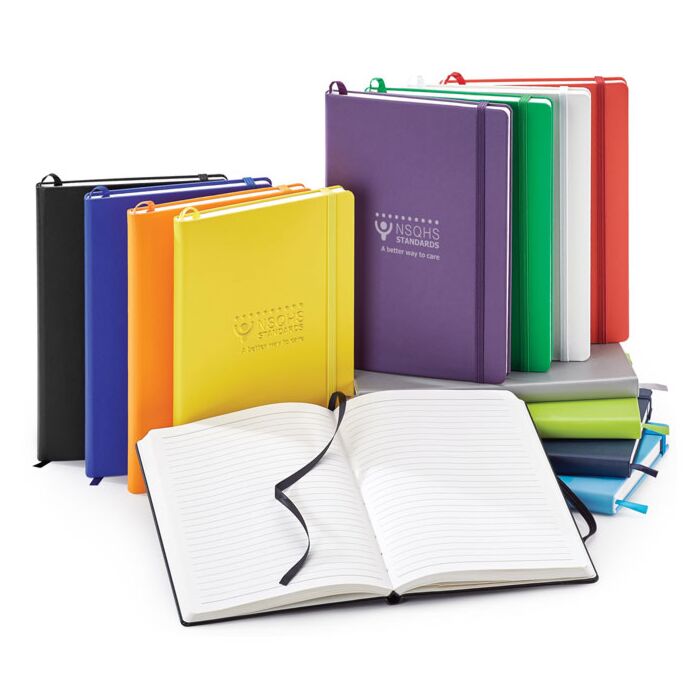
Neoskin - Hard Cover Journal
Instant Quote
Ready after selected options
Plus applicable taxes
Plus applicable taxes. Quote updates if options change.
In stock
Pricing
65 - 99
Qty (Coloured) $13.50
100 - 249
Qty (Coloured) $13.00
250 - 499
Qty (Coloured) $12.50
500 - 999
Qty (Coloured) $12.00
1000 - and more
Qty (Coloured) $11.50
| Qty | 65 - 99 | 100 - 249 | 250 - 499 | 500 - 999 | 1000 - and more |
|---|---|---|---|---|---|
| Qty (Coloured) | |||||
| Price each | $13.50 | $13.00 | $12.50 | $12.00 | $11.50 |
| Setup charges | $100.00 | $100.00 | $100.00 | $100.00 | $100.00 |
| Additional location add | $1.00 | $1.00 | $1.00 | $1.00 | $1.00 |
| Each additional colour | $1.00 | $1.00 | $1.00 | $1.00 | $1.00 |
Product Details
- Size: 5.5" W x 8.25" H x 0.5" D
- Hard Cover Journal
- Interior pocket
- 192 ivory, lined acid free pages
- Ribbon as a bookmark
- Elastic closure
- Price includes 1 colour imprint or debossed at one location
Best Decorating Process
Debossed: 3" x 2.5" (Centered front between edge and elastic)
Silk Screened: 3" x 4" (Centered front between edge and elastic)
Estimated Production Time
7-10 business days from artwork approval. Rush service available!
| Vendor Code | 540 |
|---|
Artwork & File Preparation
Our goal is to use your art file to create the best print possible.
Contact [email protected] and we'll help answer your design questions.
How to Send Your Files
Send us your design as a vector file or a high-quality image file. We'll accept any of the file types below:
-

Adobe Illustrator Files .ai
- Illustrator files are vector - top quality.
- Please convert all fonts (type) to outline.
- Save the file as .EPS for maximum compatibility.
-

Adobe Photoshop Files .psd
- Keep file size below 6MB if possible.
- Photoshop files are best at 300 DPI or higher.
- Send the .psd file with Layers.
-

Corel Draw Files .cdr
- Corel Draw files are great!
- Be sure to convert all fonts (type) to outlines.
-

Image Files .jpg or .png
- Image files need to be high quality.
- Save the image as 300 DPI at actual print size.
-

PDF
- Save your file as a PDF to reduce file size.
- Only have a Word Document of your artwork? Send us a PDF and we'll help recreate the design.
Standard Pantone Colours
Please provide us with PMS# (solid coated). We can match an exact ink for an additional fee.
Bleed
Please always include at least 0.25" bleed on all sides.
Vector Files
What is a Vector file?
Vector files use lines, curves and shapes to create an image based on mathematical formulas.
Advantage of Vector:
Vector designs can be enlarged without getting pixelated or blurry.
Disadvantage of Vector:
Photographs and images usually can't be vectorized. Vector is best for shapes and text.
Which programs use Vector?
Adobe Illustrator and Corel Draw are two popular vector art programs.
Common Vector Problem: Missing Font
Solution 1:
If you are using a rare font, send us the font file (.ttf) with your vector design file (.ai .cdr).
Solution 2:
Alternatively, send us a copy of your file with all fonts converted to curves (outlined).
Be sure to save the original under a different name in case you want to edit the text later on.
Raster Files
What is a Raster file?
Raster files use pixels to display an image.
Advantage of Raster:
Raster files are good for photographs.
It can print well when you set your image size and quality high.
Disadvantage of Raster:
Raster files can look blurry when enlarged. Be sure to save at high quality from the start.
Which programs use Raster?
Adobe Photoshop is a popular raster program. Most images online are raster files as well.
Common Raster Problem: Low Quality Image
Solution 1: Send a Higher Quality Image
When creating a new document in Photoshop, select Image > Image Size and set the quality to 300 DPI. Note that enlarging a low quality jpg will not increase the quality.
Once you have a higher quality image, send it to us!
Solution 2: Hire our Designer
For $30 per half hour, one of our Graphic Designers will help re-create your design.
Need Design Help?
Need Help?
We recommend that you or your graphic designer supply us with art that is ready to print.
If you can't supply a high resolution file, our Art Department staff will help re-create at $30 per half an hour.
Contact [email protected] and we'll help answer your design questions.